
Atomic Insights #5: LinkedIn Sales Navigator Filters in 2026 - Why Most Reps Build A List That's Doomed From The Start
36 lead filters. 16 account filters.
Most reps use four.
I've watched sales teams spend $1,000+ a month on Sales Navigator - then filter by job title and geography alone. No activity signals. No company-level qualification. No keyword layer. Just "VP Sales in Singapore" and a prayer.
The result? A list of 500 people who technically match the job title. But half of them haven't been active on LinkedIn in months, their company has been shrinking for a year, and they'd never heard of you before you landed in their DMs.
There's a better way. And it doesn't require adding more filters - it requires using the right ones, in the right order.
If you're new to Atomic Insights - welcome. This is a fortnightly newsletter from Dan Malone, co-founder of Atomic BI, on practical LinkedIn prospecting strategy for B2B sales teams.
In Issue #1, we covered why spray-and-pray outreach is dead and what replaced it. In Issue #2, we looked at how LinkedIn comments are doing more than you think. In Issue #3, we dug into how 360Brew - LinkedIn's 150-billion-parameter AI model - is judging your profile. And in Issue #4, we broke down your Social Selling Index and why it's a better proxy for pipeline health than most people realise.
This issue: the targeting layer. Because all the perfect messaging in the world won't save you if your list is wrong.
1. TWO SEARCHES, NOT ONE
Most Sales Navigator users operate in Lead Search mode. They open the tool, set a handful of criteria, and hit go.
The Account Search tab sits on the left, largely ignored.
LinkedIn Sales Navigator has 36 lead filters and 16 account filters - and the majority of users never use both in the same campaign.
That's the single biggest missed opportunity in B2B prospecting right now.
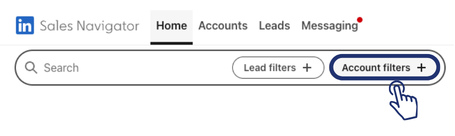 Start here - not Lead filters
Here's the problem with starting (and stopping) at Lead Search: you're targeting people without first qualifying the companies they work for. You end up reaching out to a VP of Sales at a company that's been laying people off for two quarters. Or one that already uses your direct competitor. Or one with three salespeople when your minimum viable client needs twenty.
The fix is simple. Start with Account Search. Build your qualified company list first. Then use Lead Search to find the right people within those companies.
The workflow:
- Run Account Search with your company-level criteria
- Save as an Account List
- Switch to Lead Search
- Under "Workflow", select your saved Account List
- Layer Lead filters on top.
Now you're not just finding the right job title. You're finding the right job title at the right company.
360Brew is watching both ends of this. It tracks company-level signals (growth, activity, engagement) and individual signals (posting behaviour, profile views, job changes).
When your targeting matches on both dimensions, the prospects you reach are the ones the algorithm has fresh, rich data on. That makes personalisation more relevant and response rates higher.
Atomic Action Steps:
- Before your next campaign, open Account Search first - not Lead Search. Build Account lists for all your customer segments.
- Then apply Lead filters to build each list. Every result is now someone at a pre-qualified company.
2. THE ACCOUNT FILTERS WORTH USING
Not all 16 account filters are created equal. Some are table stakes (industry, geography). A few are underused signals that tell you something important about timing.
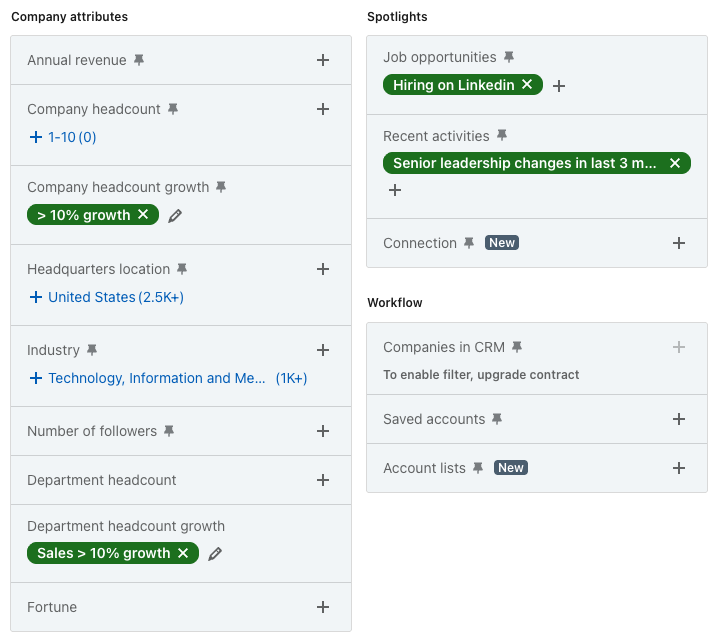 Build your Account List using these filters first.
Here are key account filters to use for your campaigns:
- Company Headcount Growth
Under Company Attributes. Filter for companies with 10%+ headcount growth in the past year. They're hiring. That means budget, movement, and usually a pain point they need to solve fast. Fast-shrinking companies are in cost-cutting mode - not buying mode.
- Department Headcount Growth
Even more specific. If you sell to sales teams, filter for companies where the Sales department headcount is growing. They're scaling their team right now. That's your window.
- Job Opportunities (Spotlight Filter)
Companies with active job postings are signalling intent. A company posting for five SDR roles has a sales hiring problem. If your product addresses something for SDR teams, that's your ICP raising its hand. One of the most overlooked filters in the whole tool.
- Recent Activities (Spotlight Filter)
This surfaces accounts with leadership changes, funding news, or company-level activity in recent months. Leadership changes are particularly valuable - new executives almost always review their tech stack in the first 90 days. That's your opening.
360Brew tracks company-level motion as part of its relevance scoring. When you outreach to someone at a company experiencing growth or a leadership change, you're targeting a moment of change - and 360Brew has fresh signal data on it.
Atomic Action Steps:
- Explore the 16 Account filters and identify those that are essential for your targeting.
- Add these filters to your next campaign!
3. THE LEAD FILTERS THAT ACTUALLY MATTER
Once you have your account list, it's time to find the right people inside those companies. The standard approach - filter by job title and seniority - gets you a list. A smart filter stack gets you a pipeline.
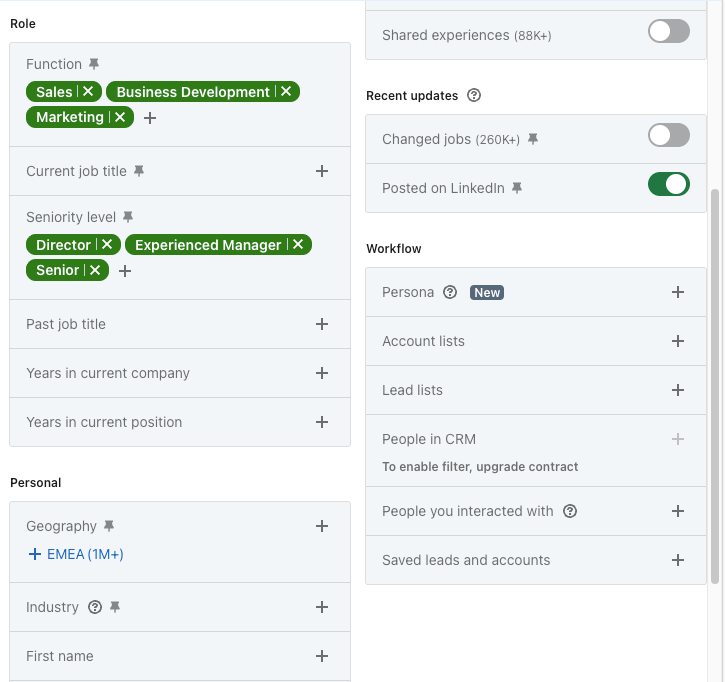 Check out my favourite lead filters below.
- Posted on LinkedIn (Recent Updates)
Probably the single most valuable filter in the entire tool - sitting in a section most reps scroll past.
"Posted on LinkedIn recently" surfaces leads who have been active on the platform in the last 30 days. Not dormant profiles. People who are already in "LinkedIn mode" - reading, writing, engaging.
Why does this matter so much? Because 360Brew is actively distributing content to and collecting signals from these people right now. When your connection request or InMail lands, they're far more likely to see it, read it, and respond.
LinkedIn has 1.2 billion registered members but only around 310 million monthly active users. That means roughly 74% of profiles are largely dormant.
The "Posted on LinkedIn recently" filter cuts straight to the active 30-day slice: people checking their notifications, reading their feed, and likely to see your message within hours, not weeks.
That's not a small difference. It's the gap between a 3% reply rate and a double-digit one.
- Changed Jobs (Recent Updates)
People who changed jobs in the last 90 days are in evaluation mode. They're questioning how things were done at their old company, building new processes, and often have budget to spend. This is one of the warmest segments in your pipeline - and most reps never target it deliberately.
- Seniority Level + Function (Role Filters)
The combination that works: Seniority (Director, VP, C-Suite, Owner) + Function (Sales, Business Development, Revenue Operations). One filter alone is too broad. Together, they isolate the actual decision-maker in the right department.
Don't rely on job title alone. "Head of Sales" means very different things at a 10-person startup vs. a 500-person company. Seniority + Function gives you consistent targeting regardless of what someone calls their role.
- Viewed Your Profile Recently (Buyer Intent)
They looked at your profile. They know you exist. Outreaching to someone who is already curious about you is a completely different conversation from a cold introduction.
Atomic Action Steps:
- Explore the the Lead filters and identify those that are essential for your targeting.
- Always enable "Posted on LinkedIn recently" under Recent Updates. Never send a campaign without it.
- Build different list segments to for specific campaigns:
- "Changed jobs in last 90 days" could be a priority segment - outreach this group first.
- Combine Seniority Level (VP+) with Function to find decision-makers.
- Check Buyer Intent → "Viewed your profile recently" weekly and outreach within 48 hours.
4. THE KEYWORD MULTIPLIER
Here's the most underused feature in the entire tool.
The search bar at the top of Sales Navigator - the one that says "Search by keyword, name, or company" - doesn't just search names. It searches the entire profile.
For leads: job title, headline, About section, skills, experience descriptions, schools, and recommendations.
For accounts: company Overview and Specialties fields.
Most reps either leave it blank or type a job title (which the Role filters already cover). The real value is using it as a refinement layer on top of your filters.
A few examples:
- Type "outbound" while filtering for Sales leaders - and you instantly separate the SDR-driven outbound orgs from the inbound-only teams. You're not just finding the right title. You're finding the right mindset.
- Type "Sales Navigator" to find prospects who specifically mention it in their profile. They're active users - which tells you something about their sophistication level and the kind of conversation they'll respond to.
- Type "scaling" or "building team" to surface people writing about growth in their experience descriptions right now.
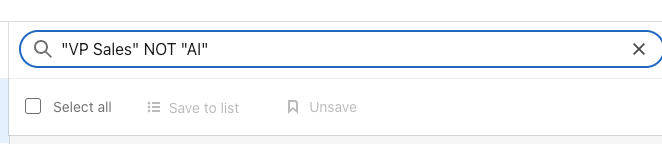 Unlock the next level of keyword search!
Boolean search works here too:
"sales team" AND (outbound OR prospecting)
"VP of Sales" NOT "Salesforce"
LinkedIn added AI-powered nested boolean operators to Sales Navigator in 2026 - the keyword bar is now more powerful for complex searches than ever before.
Think of filters as your net. Keywords are the mesh size.
Atomic Action Steps:
- After setting all your filters, add a keyword to the search bar before running the search.
- Test your most specific ICP qualifier as a keyword (e.g. "outbound", "field sales", "agency", "SaaS").
- Try Boolean: "Head of Sales" AND (outbound OR prospecting) to find your exact buyer.
- For account search, use keywords to find niche companies even if the industry filter isn't specific enough (e.g. type "B2B SaaS" + set Industry to Software).
5. THE COMPLETE FILTER STACK IN ACTION
Here's how I'd build a campaign targeting VP/Director of Sales at mid-market SaaS companies in Asia-Pacific.
Swap the specifics for your ICP - the sequence stays the same.
Step 1 - Account Search (build your company list)
- Industry: Computer Software / Internet
- Company Headcount: 51-500
- Company Headcount Growth: 10%+ last 12 months
- Spotlight: Job Opportunities (active hiring)
- Geography: APAC
- Save as: "APAC Mid-Market SaaS - Apr 2026"
Step 2 - Lead Search (find the people)
- Workflow → Account Lists → select saved list above
- Seniority Level: Director, VP, C-Suite
- Function: Sales
- Recent Updates: Posted on LinkedIn recently
- Keyword bar: outbound OR "sales development"
Step 3 - Segment by warmth
- Pull "Changed jobs in last 90 days" as a separate, priority outreach segment
- Sort by "Recent Updates" to surface the most recently active leads first
- This warm segment gets your best message and goes first
Step 4 - Review before saving
- Scan the first 20-30 profiles manually. If the list looks wrong, it is wrong - adjust filters before saving.
- Save as a named Lead List. "Search 1" tells you nothing when you look at it next week.
Step 5 - Outreach (and what this list makes possible)
A list built this way has four compounding signals: right company (growing, hiring, in your ICP), right person (decision-maker, right function), active on LinkedIn, and 360Brew has fresh data on them.
You don't have to use all the filters for every segment - some would yield results that are too narrow. But, at least have them in your arsenal to build targeted lists.
That combination is why this targeting approach - across our own campaigns - has driven a 21.4% response rate on 252 InMails, and why the clients we work with consistently see 13-27% on properly targeted lists. The same message sent to a poorly built list averages 3%. The list is the lever.
Personalised, hyper-relevant outreach performs at a completely different level when the list underneath it is this clean.
If you want to see what 13-27% response rates look like in practice, the list quality is always the first thing we look at.
Atomic Action Steps:
- Document your filter stack in writing. Name every saved search with company type + date.
- Build two lead lists per campaign - a "warm" list (recently posted + changed jobs) and a "standard" list. Outreach the warm list first.
- Revisit and refresh saved Account Lists monthly - companies change.
- Never run a campaign from an unsaved, unnamed search. If you can't recall the criteria, you can't reproduce the results.
FREQUENTLY ASKED QUESTIONS
What is the difference between lead filters and account filters in LinkedIn Sales Navigator?
Lead filters target individual people based on their job title, seniority, activity signals, and behaviour. Account filters target companies based on size, growth rate, industry, and intent signals. The most effective prospecting campaigns use both together - account filters to qualify the right companies first, then lead filters to find the right people inside those companies. Using only one set of filters means you're either targeting anyone at the right job title, or finding good companies with no way to reach the right decision-maker.
What are the best LinkedIn Sales Navigator filters for B2B outreach in 2026?
For accounts: Company Headcount Growth (10%+ over 12 months), Department Headcount Growth in your target function, Job Opportunities spotlight (companies actively hiring), and Recent Activities (leadership changes in the last 90 days). For leads: Posted on LinkedIn recently, Changed jobs in the last 90 days, Seniority + Function combination, and Viewed your profile recently under Buyer Intent. These filters target companies in motion and people who are active and receptive - the two conditions most predictive of a high response rate.
How do I use Account and Lead filters together in Sales Navigator?
Run Account Search first using your company-level criteria, then save the results as a named Account List. Switch to Lead Search, go to the Workflow section, select Account Lists, and choose your saved list. Then layer your lead-level filters on top. Every result now represents someone at a pre-qualified company who also matches your individual criteria. This two-step approach is the most underused strategy in Sales Navigator and consistently produces higher-quality prospect lists than lead filtering alone.
How does the "Posted on LinkedIn recently" filter improve outreach response rates?
Leads who have posted on LinkedIn recently are active on the platform and currently within 360Brew's active signal network - LinkedIn's AI model is distributing their content and tracking their engagement in real time. When your InMail or connection request arrives, they're in "LinkedIn mode" and far more likely to see it quickly. As a baseline rule: if a prospect hasn't posted in 90+ days, they may not log in regularly enough to see your message for days, or at all. This filter alone can meaningfully shift your visible-to-replied ratio.
How does keyword search work in LinkedIn Sales Navigator, and when should I use it?
The keyword search bar searches full profiles for leads (headline, About, skills, job descriptions, recommendations) and company Overview and Specialties fields for accounts. Use it after you've set your filters as a refinement layer - not as a replacement for filters. Type your most specific ICP qualifier (e.g. "outbound", "field sales", "B2B SaaS") to narrow the results. Boolean operators work here: AND, OR, NOT, quotes for exact phrases, and parentheses for grouping. For example: "VP Sales" AND (outbound OR prospecting) finds decision-makers who specifically write about outbound in their profiles.
COMPLETE THIS WEEK:
- Open Account Search before your next campaign. Build your company lists first.
- Enable "Posted on LinkedIn recently" in every Lead Search from now on. No exceptions.
- Save your best-performing filter stack as a named Lead List with today's date.
- Add one keyword to the search bar of your current active search. See what changes.
- Create a separate "warm" segment: Changed Jobs + Posted Recently. Outreach this first.
- Review existing saved searches - delete or rename anything older than 90 days.

Want to see how AI-powered LinkedIn outreach actually works - with 13-27% response rates and messaging that sounds like you, not a bot? Book a call and we'll show you - Why Most Reps Build Half a List